Quick Start with AI Coding: Develop a web application in 10 minutes
- Trae is an AI Coding tool developed by ByteDance, which is more suitable for novices to get started with AI Coding. We use its web side to quickly develop a small web application.
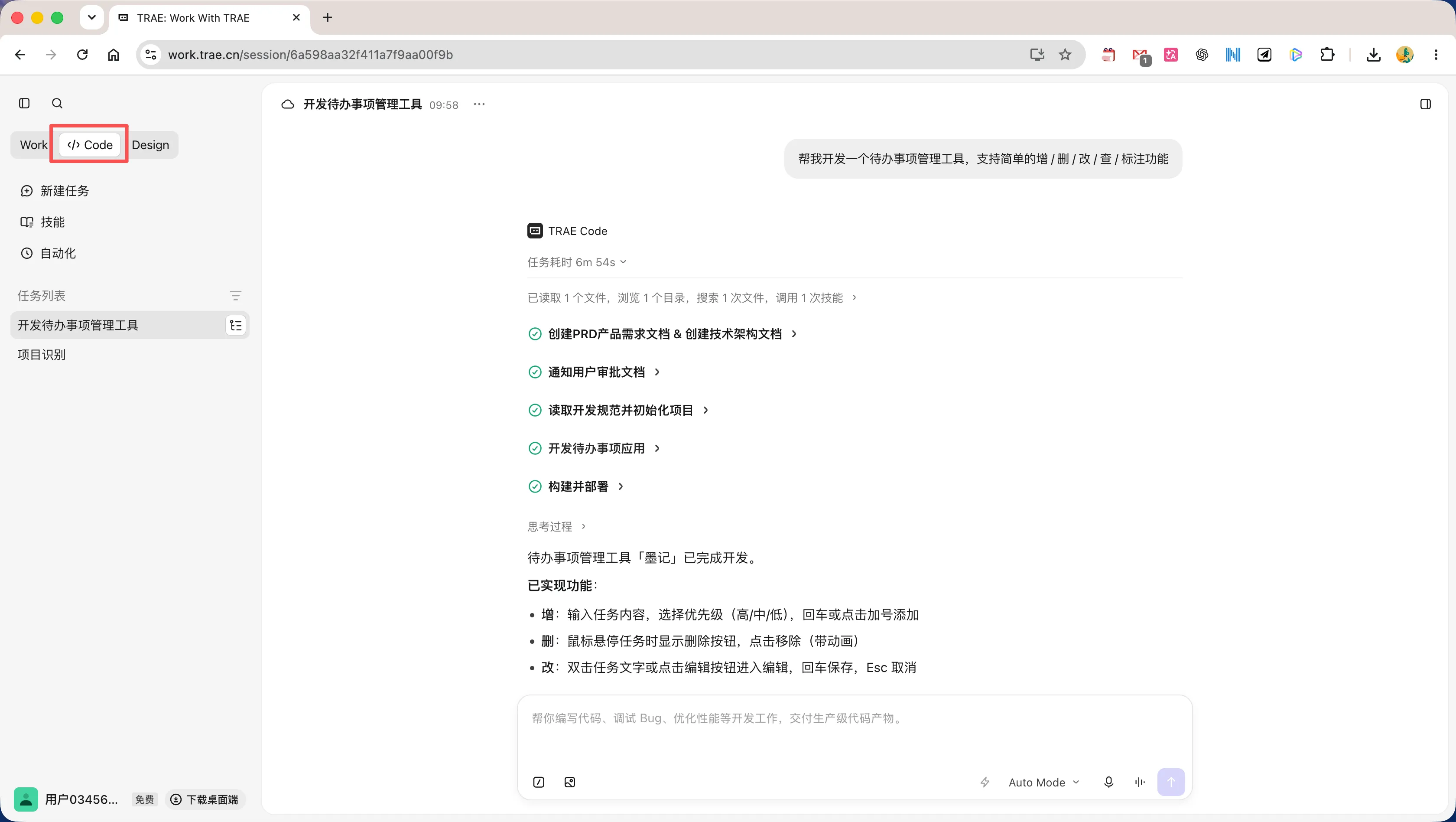
Open the Trae website in the browser, log in and switch to Code mode
Enter your requirement prompt words, such as [Help me develop a to-do management tool that supports simple add/delete/modify/check/mark functions].
The AI starts generating a detailed PRD (Product Requirements Document) and then asks for your input. After confirming, wait a few minutes and the AI will complete the first version of a simple application!
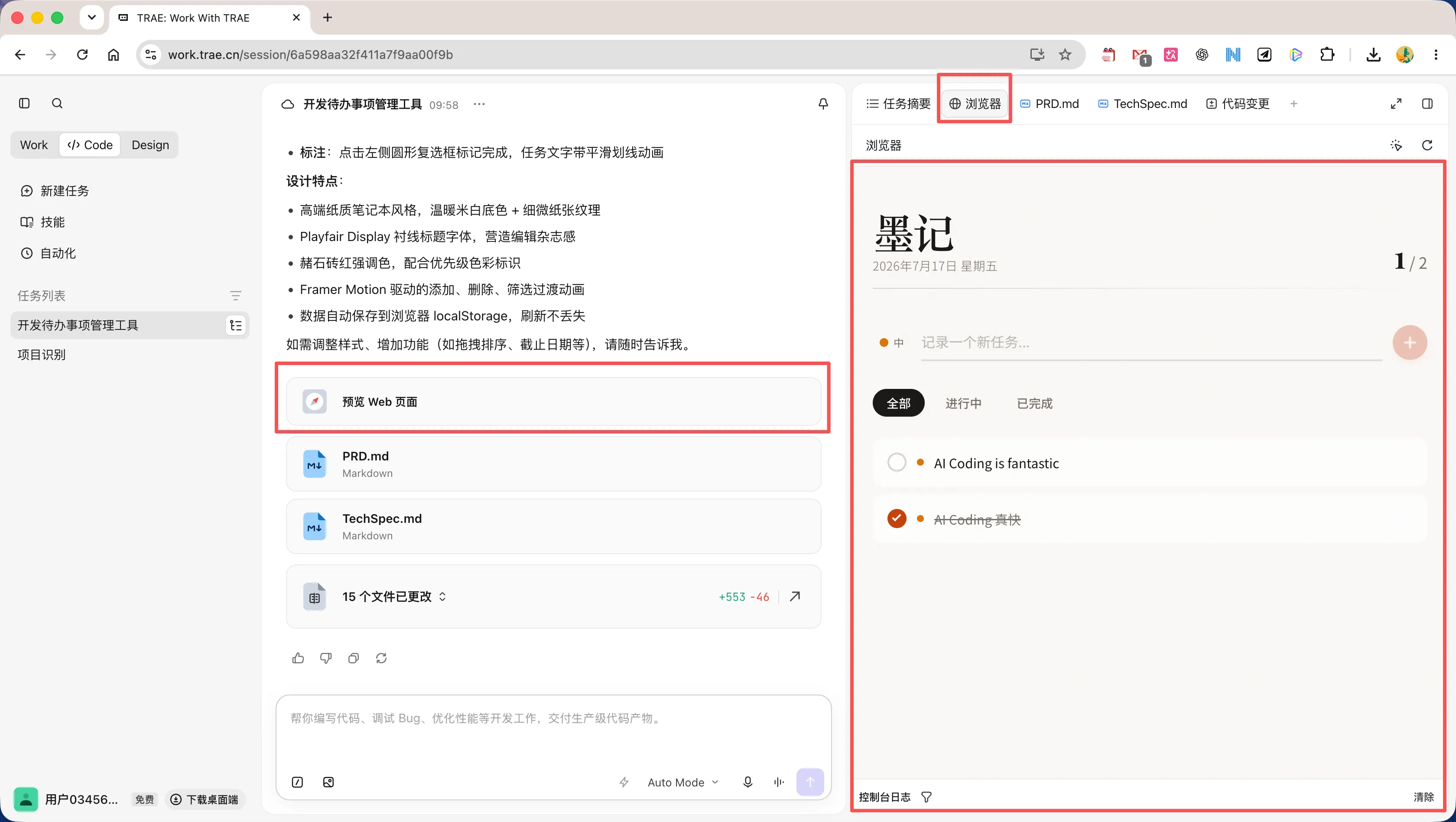
Preview the first version of the application implemented by AI Coding
Click the corresponding card in the results to view the preview page, PRD.md (requirements document), TechSpec.md (technical specifications/solutions), code changes, etc. on the right.
Select the preview page module and continue the dialogue iteration function
Click the selection icon on the right side of the browser, select the elements on the page that need to be modified, and describe the modification suggestions.
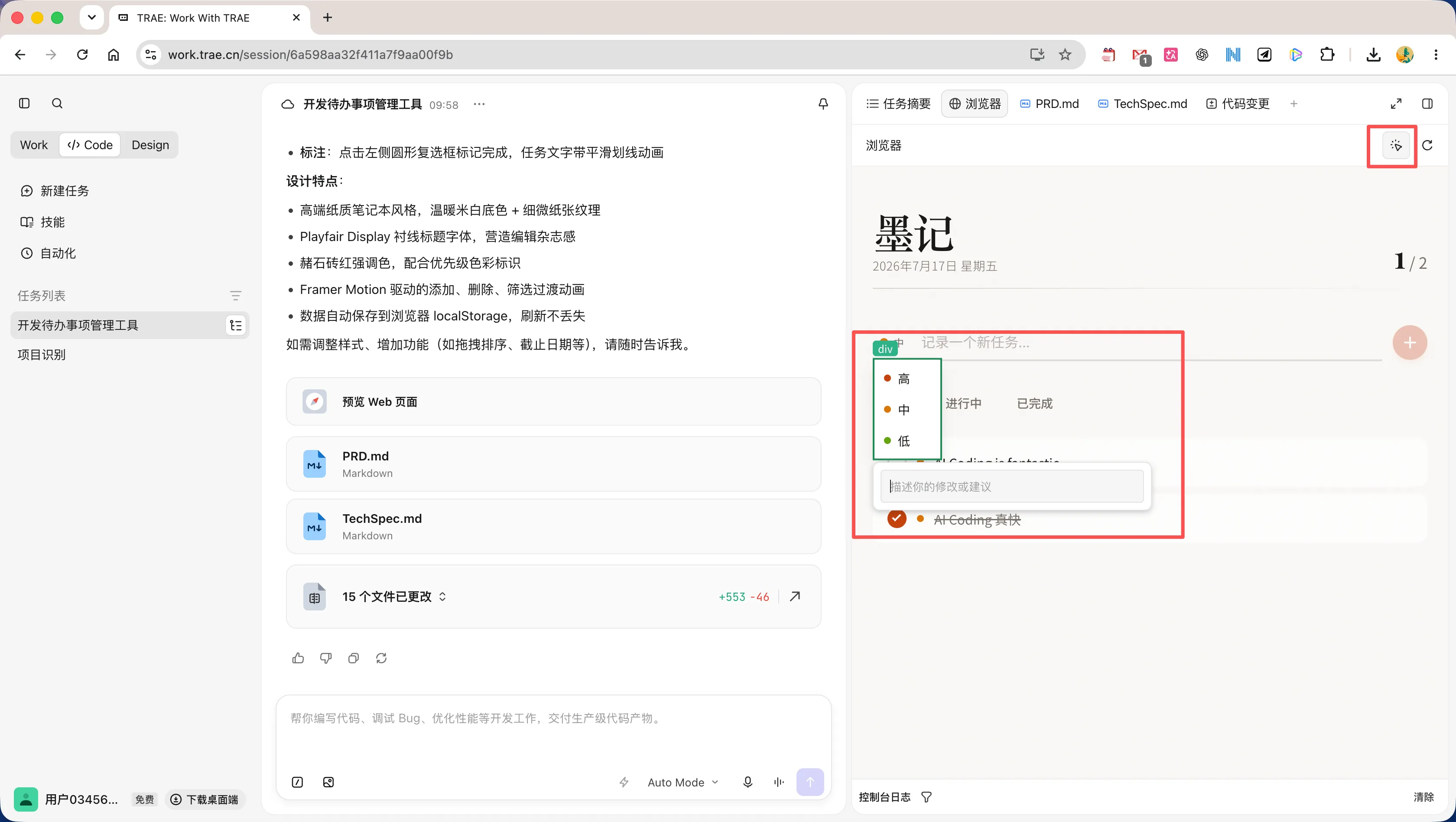
Continue sending modification instructions into the dialog box, and the AI will modify the code as required.
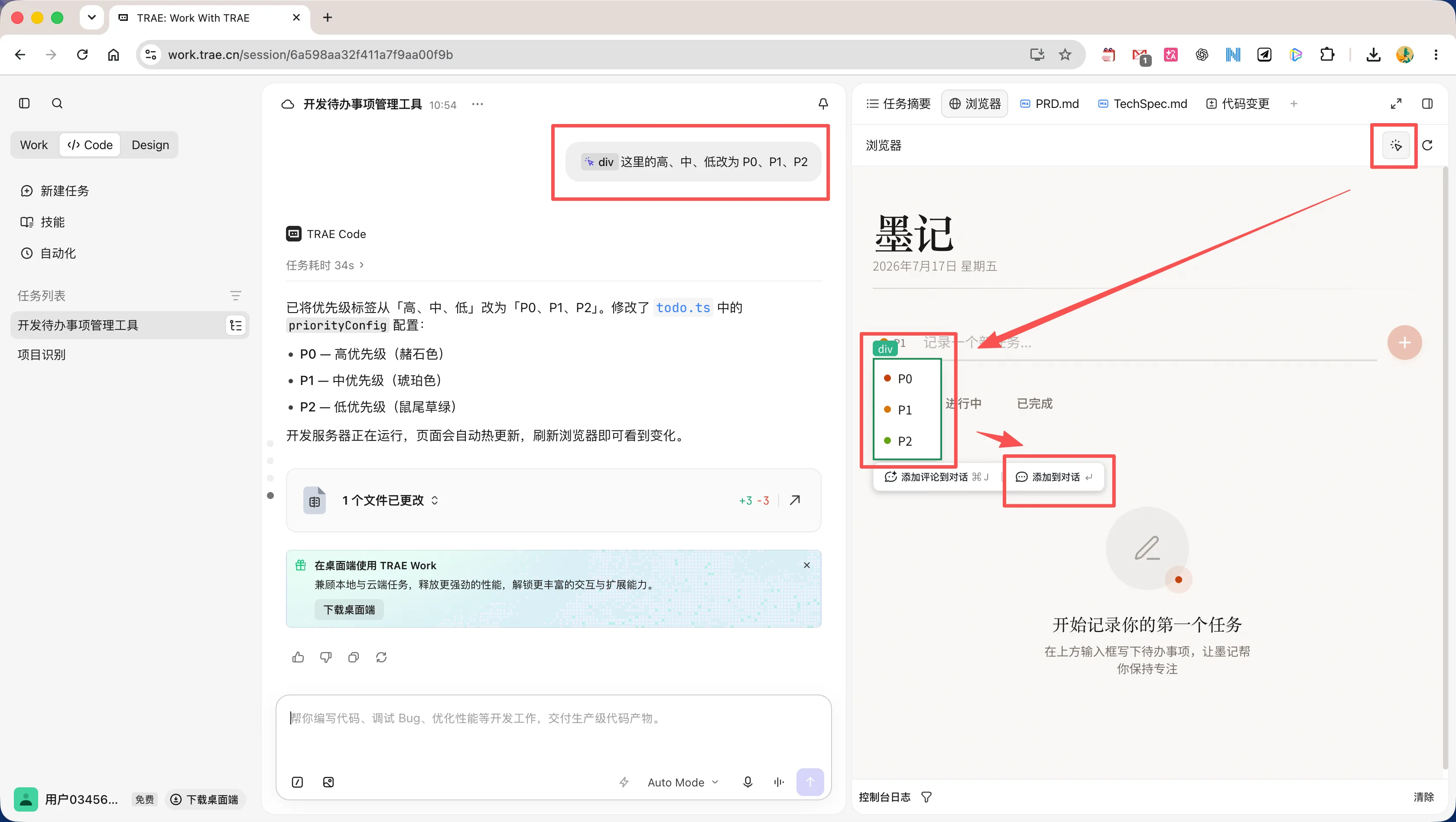
Through the above-mentioned continuous dialogue on the website, AI Coding can complete the initial form of a tool and project.
View and download AI Coding code to local
Developing on the web is great, but it’s speed-limited. Download the code generated by AI Coding, and subsequent local AI Coding iterations will be faster and more focused!
Click [File Management] at the end of the dialog corresponding to the task list on the left.
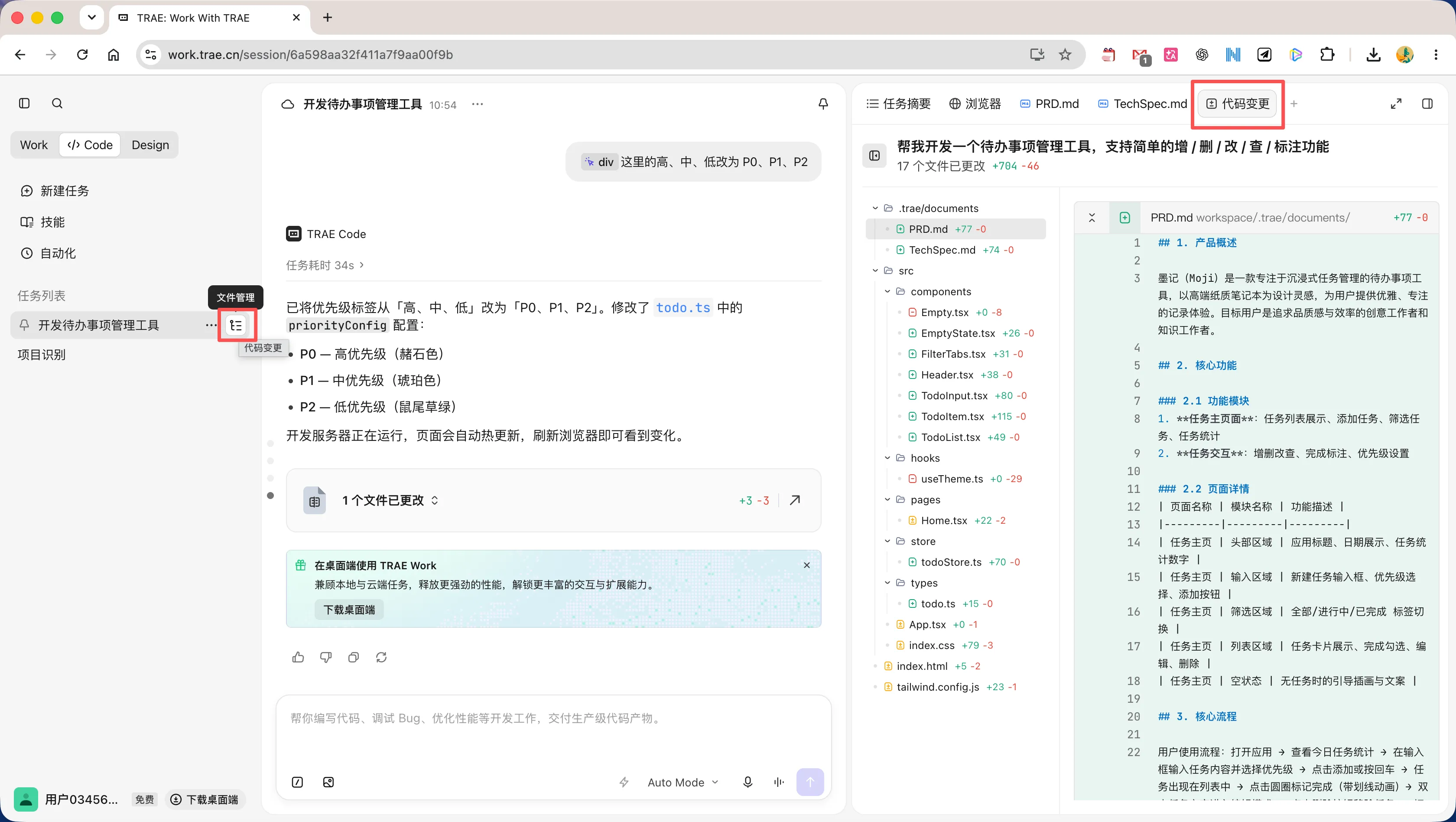
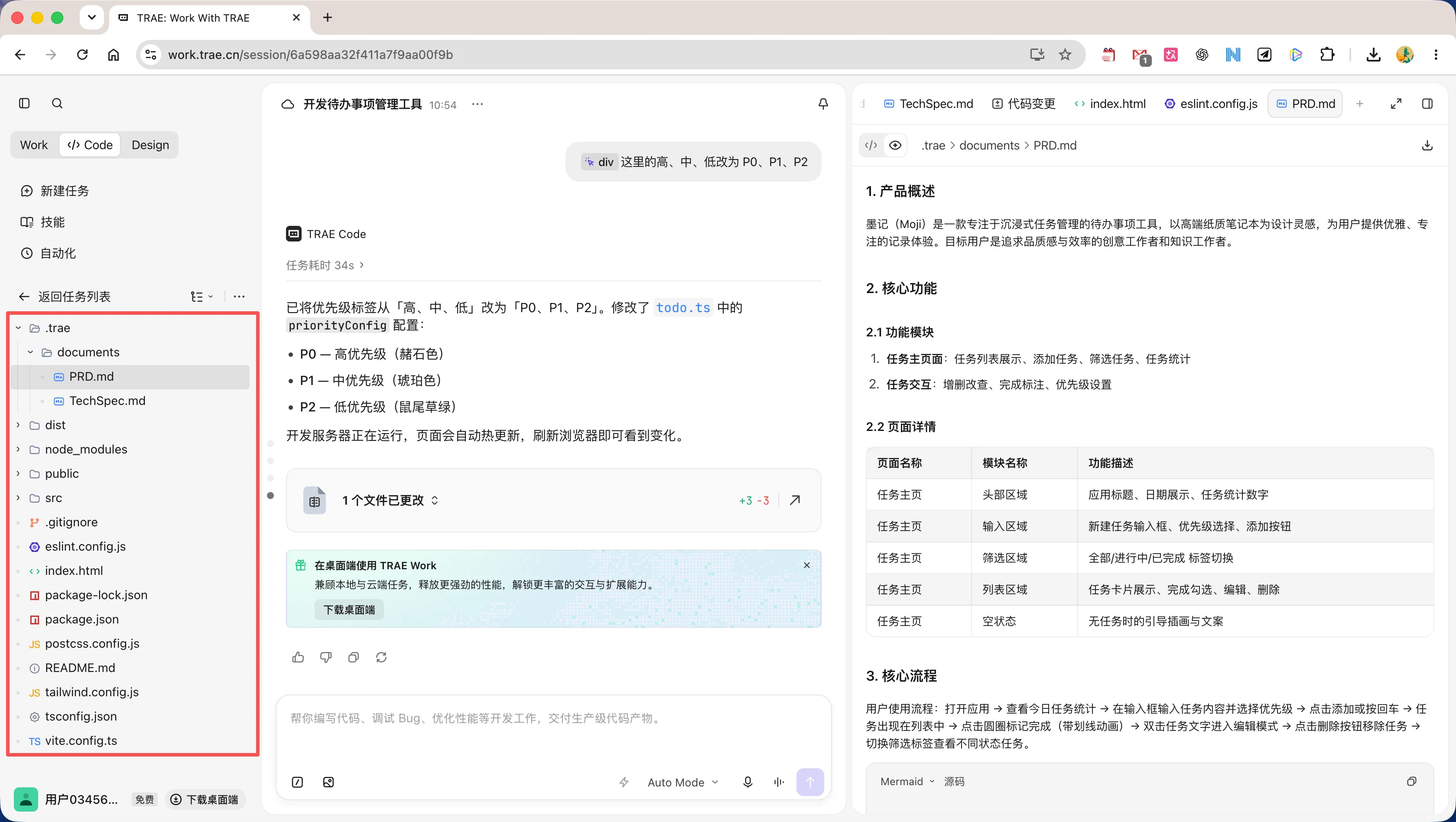
View the code files generated by this AI Coding.
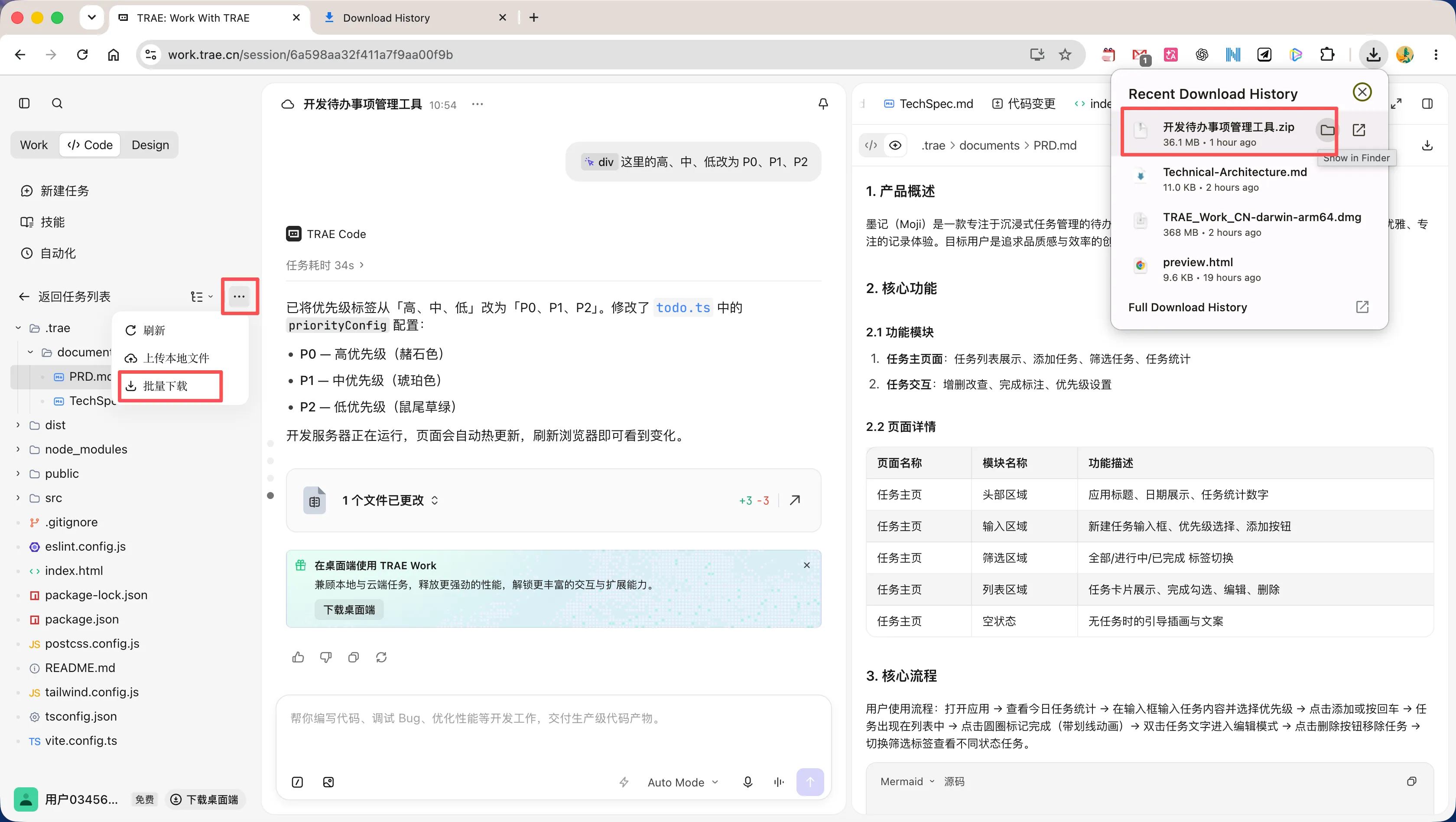
Export the code generated by this AI Coding to the local machine in batches.
Start using a professional AI-IDE to continue AI Coding like a developer
The Trae Code web client used previously is only a part of the entire TRAE Work, with limited functions and low development efficiency.
All web development uses a cloud environment. Although development is convenient, the speed is limited.
And for simple modifications, the code cannot be changed directly. It can only talk to the AI, consuming unnecessary tokens, and the continuous iteration efficiency is low.
Now, we open the TRAE official website and download the TRAE IDE for more focused and professional development (still AI Coding).
TRAE is the abbreviation of “The Real AI Engineer”.
IDE is an Integrated Development Environment and is an essential code writing and debugging tool for developers.
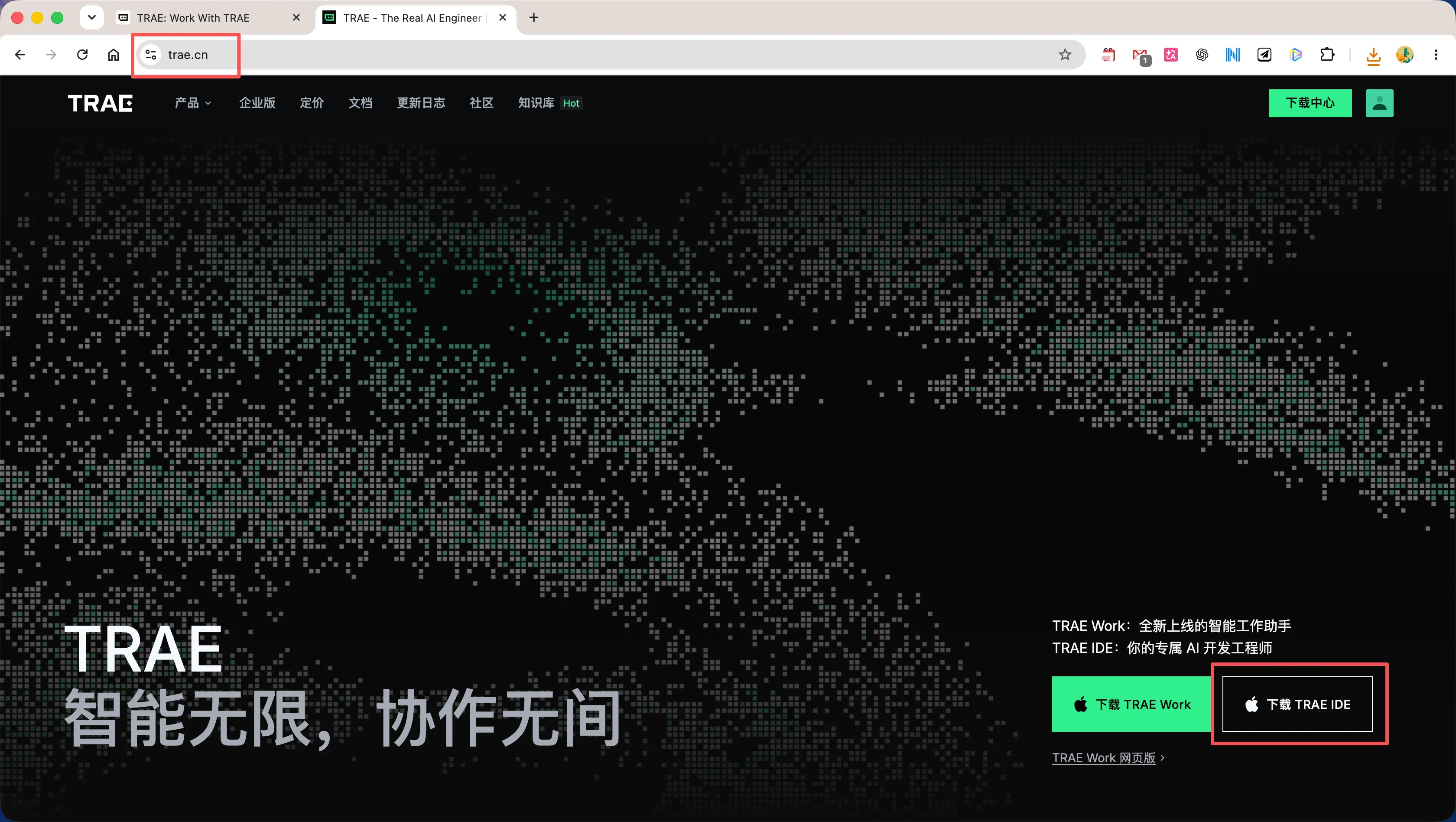
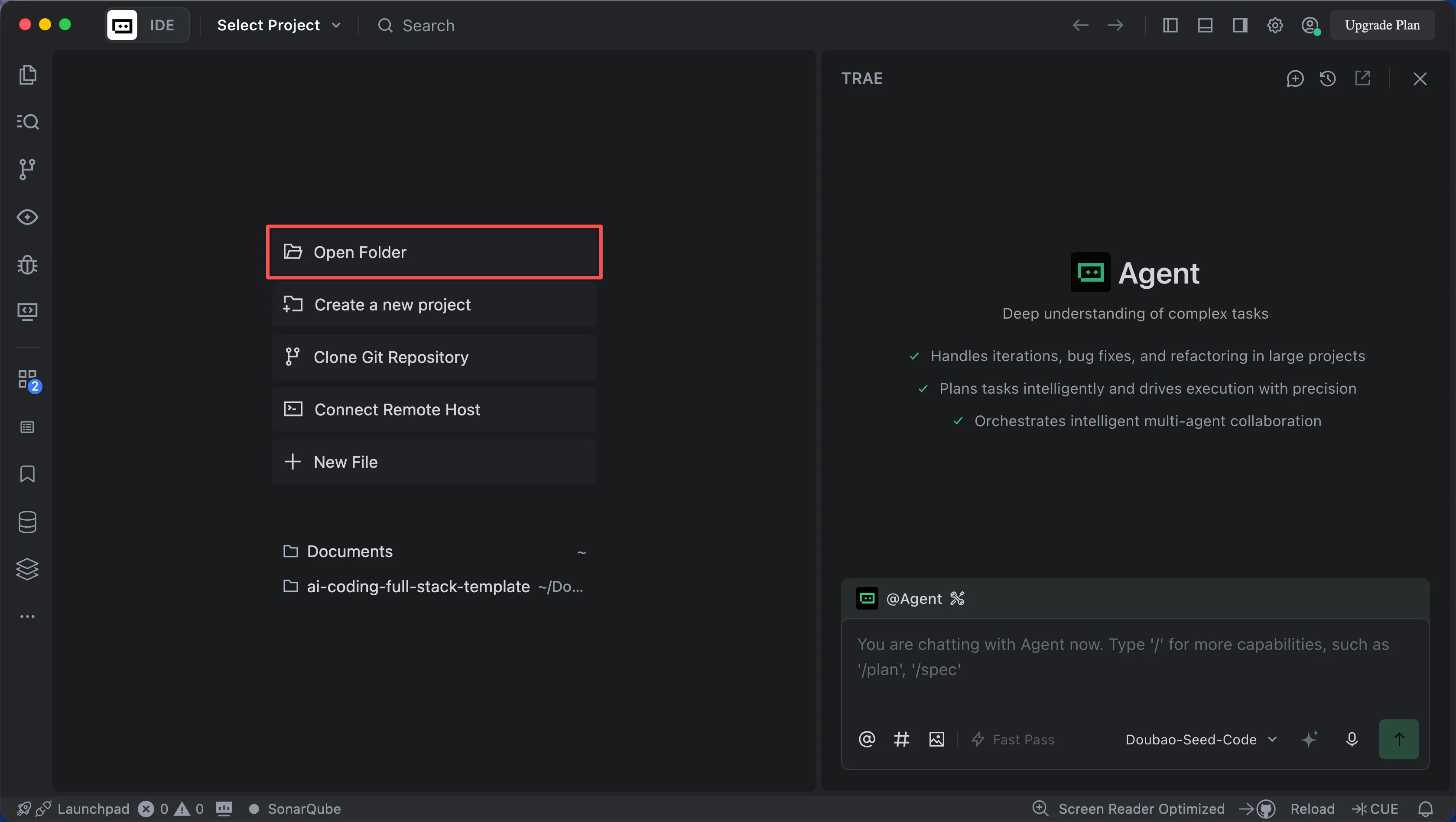
Unzip the downloaded code compressed package, open TRAE IDE, and then open the corresponding project.
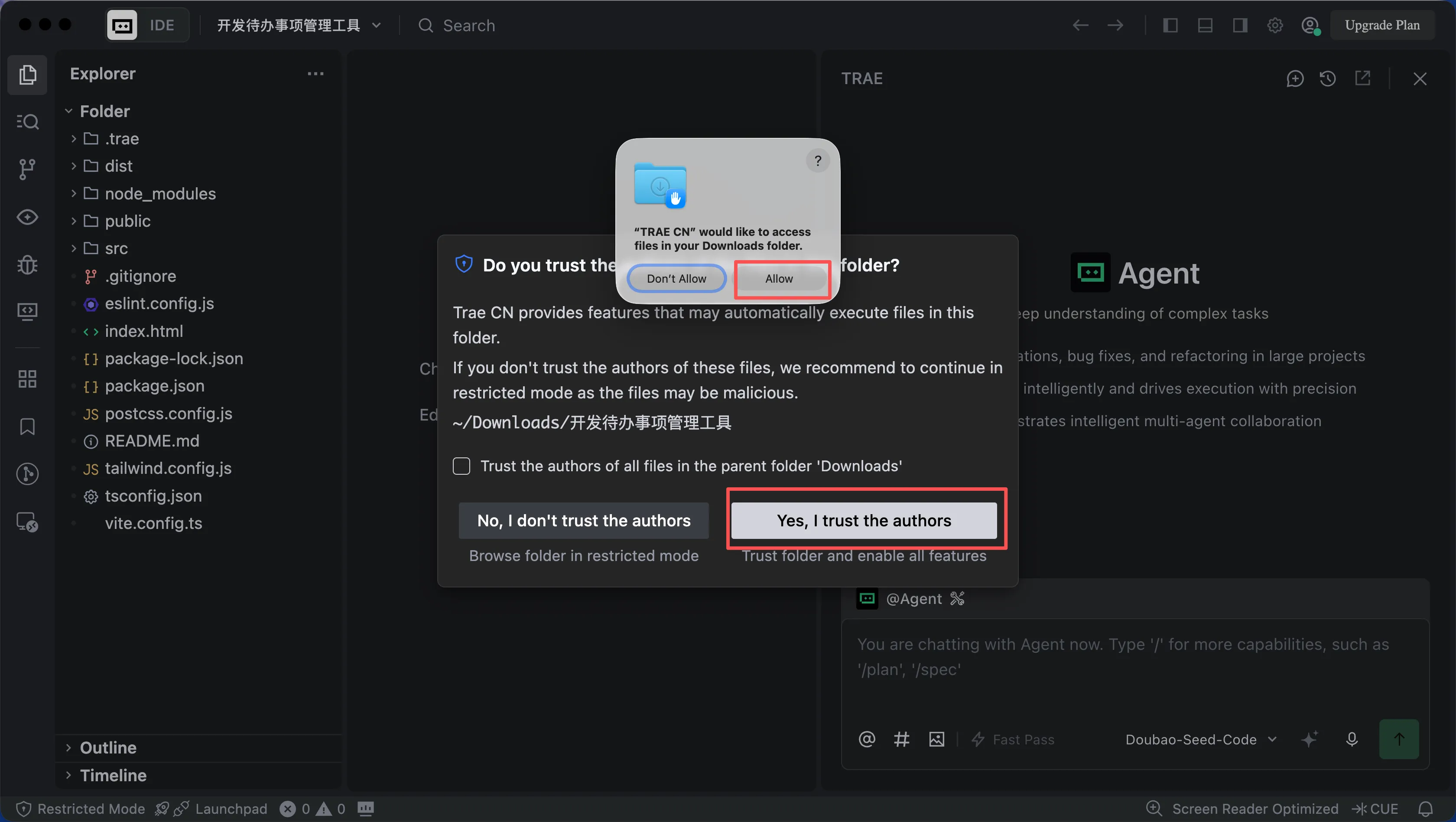
Allow TRAE CN to access our project, trust the current project code, and give it permission to facilitate subsequent AI Coding to proceed stably and smoothly!
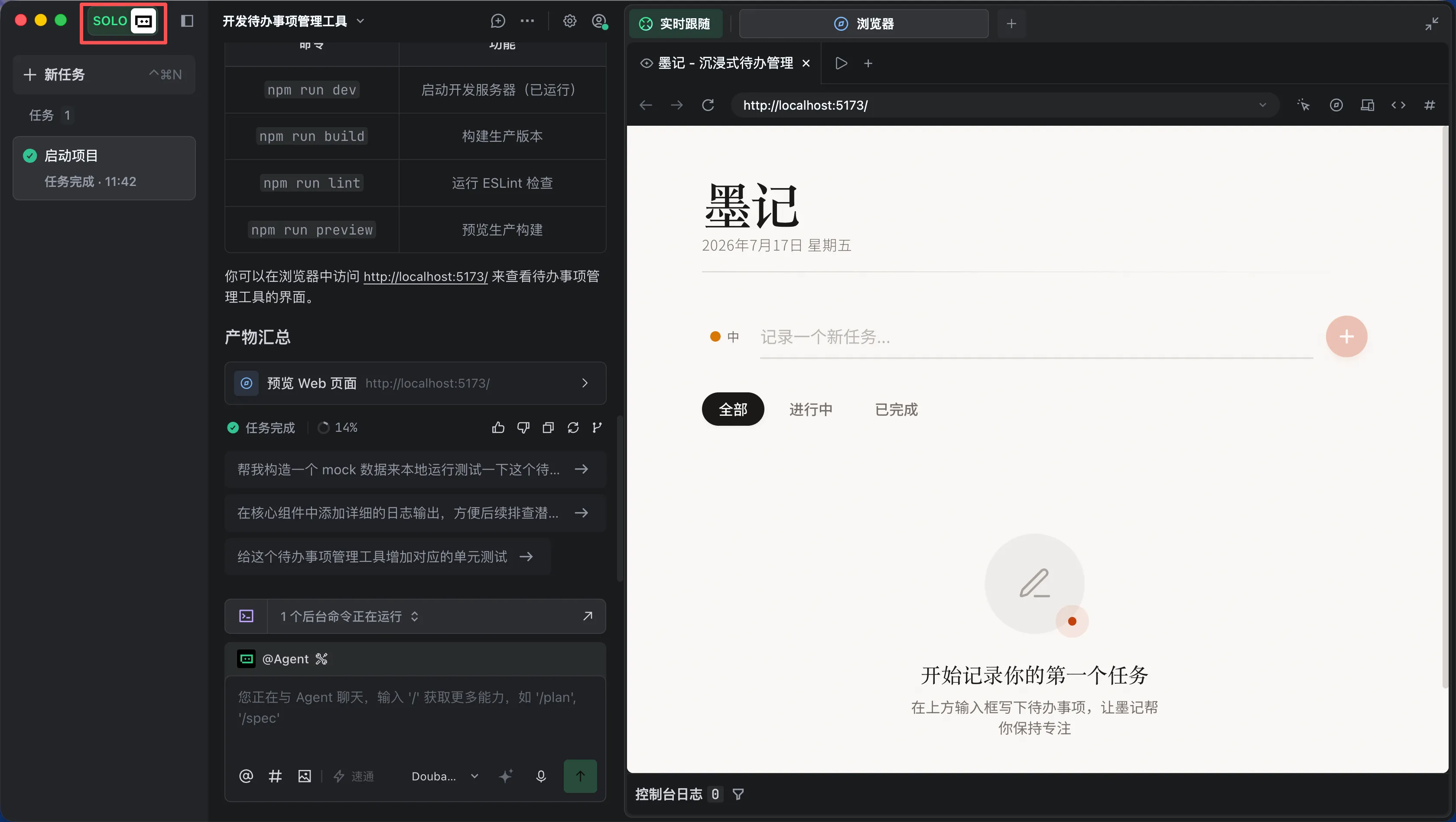
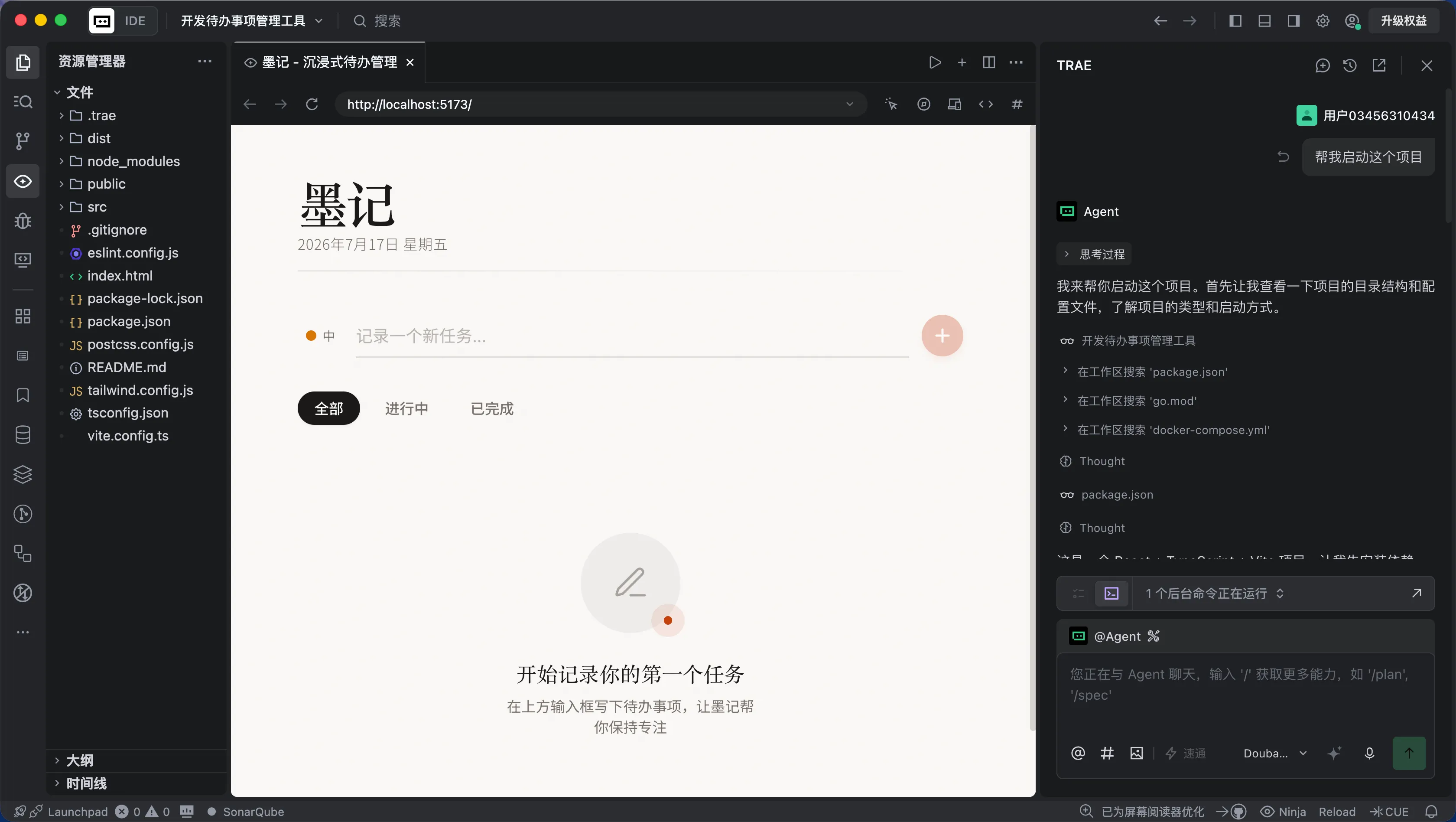
After that, all AI Coding can be continued in the dialog box. Because TRAE IDE is an AI Agent, you can also ask it all the questions in the project, let it change the code, write documents, start the project, install dependencies, and let it use your imagination.
Switch to SOLO mode and you are the AI Coding commander!