How to Choose an AI Coding Tool: A Plain-Language Guide for Beginners
You may already recognize many of these names:
Cursor, GitHub Copilot, Trae, Claude Code, Codex…
They all promise to help you write code with AI. So why are there so many kinds, and which one should a beginner install?
Here is a safe default:
If you are new to AI Coding, begin with an AI editor that clearly shows the project files, proposed changes, and running application. Move on to terminal, desktop, or cloud agents once you can judge whether a change is correct.
This article is not a ranking. Rankings become outdated quickly, while the questions that shape your experience remain fairly stable:
- Can the AI understand the whole project?
- Can it only answer questions, or can it edit files?
- Can it run commands, tests, and a browser?
- Which actions require your approval?
- When something fails, can it inspect the error and try again?
Once you understand these five questions, you can choose a tool for the task instead of chasing a new favorite every few weeks.
1. AI Coding is more than asking a chatbot for code
Imagine asking an AI:
Add a “Forgot password” feature to the sign-in page.
A general-purpose chatbot might return a code snippet and leave the rest to you:
- Find the file that contains the sign-in page.
- Determine whether the project uses React, Vue, or another framework.
- Put the code in the right place.
- Install any missing dependencies.
- Start the application.
- Read the errors and make further changes.
- Check that the existing sign-in flow still works.
An AI Coding tool can take on more of that workflow. To complete the task, it needs both context—the relevant files, requirements, and project rules—and tools for editing, running commands, and checking results.
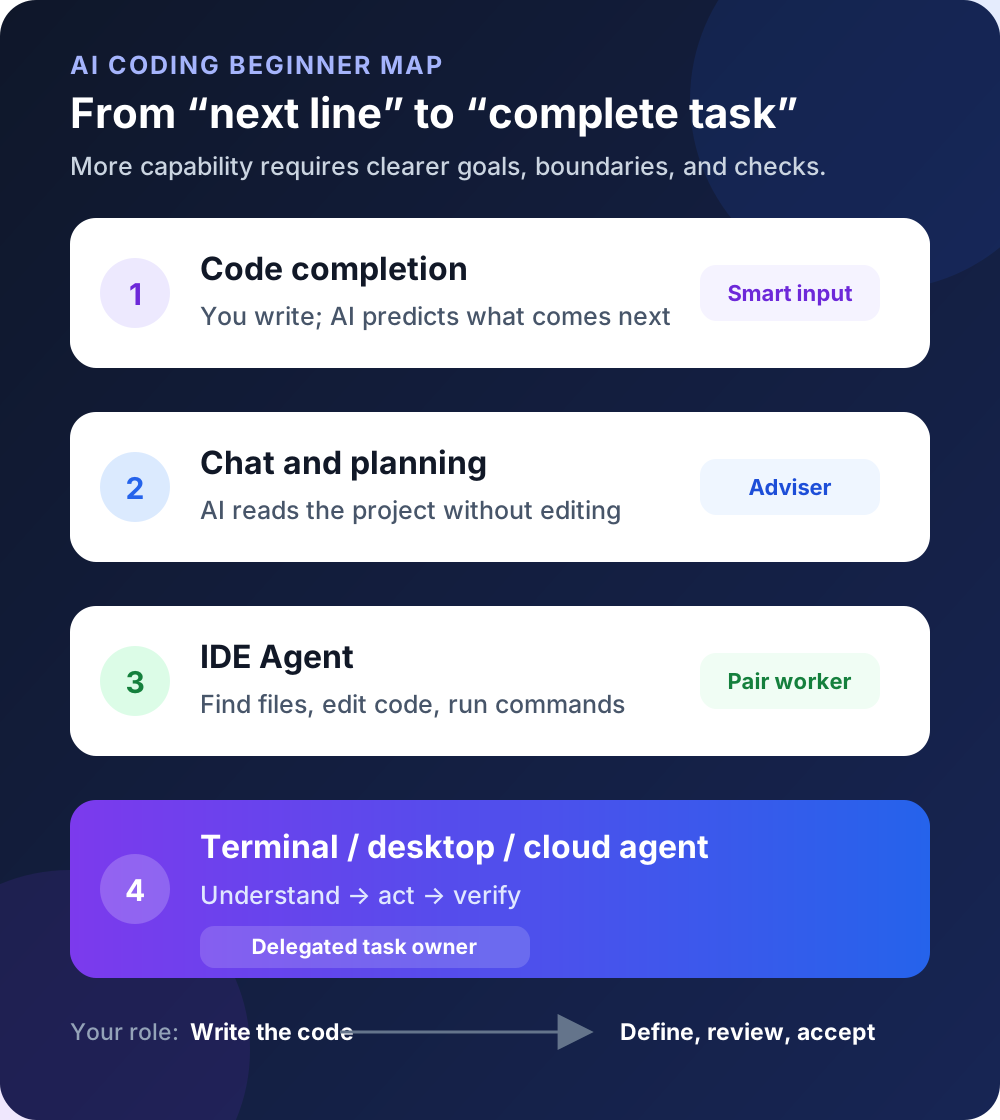
Think of a home renovation:
- Code completion is someone handing you the next tool.
- AI chat is an adviser standing beside you.
- An IDE agent is a craftsperson working with you on-site.
- A terminal or cloud agent is a craftsperson you give a room-sized assignment to complete.
As the AI takes on more of the work, you need to become better at defining the goal, setting boundaries, and checking the result.
2. Learn the four working styles before memorizing products
1. Code completion: you write, and AI suggests what comes next
You type:
function calculateTotal(items) {The AI predicts the next few lines. You press Tab to accept the suggestion or keep typing to reject it.
Typical characteristics:
- It works mainly from the current file and code near the cursor.
- You remain in control of every step.
- It has a low learning curve.
- It is useful for repetitive code, familiar functions, and simple tests.
- It is not designed to own a requirement that spans many files.
Think of it as a smart input method. It saves keystrokes, but it does not manage the whole task.
It is a good fit when:
- You are trying AI-assisted programming for the first time.
- You already know what the code should do and want to write it faster.
- Your organization tightly restricts automatic commands or file changes.
2. Chat and planning: let AI read before it acts
You might ask:
How does sign-in work in this project? Find the entry point and explain the flow in plain language. Do not modify any files yet.
The AI searches the project, reads relevant files, and explains what it found without making changes.
This style is useful when you want to:
- Understand an unfamiliar project.
- Learn how a particular section of code works.
- Compare approaches before choosing one.
- Investigate a problem before deciding what to change.
- Ask for an implementation plan first.
Think of it as working with a technical adviser. For beginners, the sequence matters: first ask the AI to help you understand the project; then allow it to make changes.
Cursor’s Ask mode, GitHub Copilot’s Ask or Plan experiences, and the read-only or planning stages available in many agents follow this pattern.
3. IDE agents: work with AI inside the editor
An IDE, or integrated development environment, is the workbench where developers browse files, write code, run programs, and debug problems.
Cursor, Trae, and VS Code with GitHub Copilot are common AI-enabled editor experiences. Depending on their configuration, their agents can usually:
- Search the repository.
- Modify several files in one task.
- Show a diff of the proposed changes.
- Run install, build, and test commands.
- Read an error and continue fixing the problem.
- Let you approve or reject actions as the task progresses.
For example, you can give an IDE agent a tightly scoped task:
Add a “Show incomplete only” filter to the existing to-do app. First inspect the project and tell me which files you plan to change. Wait for my confirmation before editing. When finished, start the app and run the existing tests. Do not change unrelated pages.
The main advantage is visibility: you can see the project tree, the code, the conversation, and the diff in one place.
That makes an IDE agent a strong starting point for most beginners.
4. Terminal, desktop, and cloud agents: delegate a complete task
A terminal is a text-based interface for running development commands. Tools such as Claude Code, Codex CLI, and Cursor CLI can work directly with a local repository, edit files, run tests, and use Git.
Coding agents are no longer tied to one interface. Codex, for example, is available through terminal, IDE, desktop, and cloud experiences. The important distinction is the workflow:
You provide a goal and constraints. The agent gathers context, takes action, checks the result, and reports back.
For example:
Fix the intermittent blank screen on the order details page.

Requirements:
1. Reproduce the problem and identify the root cause before changing code.
2. Do not change the API contract.
3. Add a test that covers the failure.
4. Run the relevant tests and type checks.
5. Report the root cause, changed files, and verification evidence.
This working style is especially useful for:
- Developers who are comfortable with terminals.
- Bug fixes and refactoring that span several files.
- Verifiable work such as tests, documentation, and dependency upgrades.
- Several independent tasks that can run in parallel.
- Long-running work that can be delegated to a cloud environment.
It also asks more of the user. When you are no longer directing every line, you must judge:
- Whether the agent understood the real problem.
- Whether the commands it wants to run are safe.
- Whether the change has expanded beyond the intended scope.
- Whether passing tests actually prove the feature works.
3. One product can support several working styles
This is one of the easiest points to misunderstand.
It used to be convenient to call Cursor an IDE tool and Claude Code or Codex terminal tools. Those labels are now too narrow:
- Cursor supports multiple chat and agent workflows and also offers a CLI.
- GitHub Copilot offers several chat, planning, editing, and agent experiences in supported editors.
- Claude Code can be used across terminal, IDE, desktop, and web experiences.
- Codex is available through terminal, IDE, desktop, and cloud experiences.
Instead of asking:
Which is stronger, Cursor or Codex?
Ask:
Do I need to watch each change, or can I delegate this task? Is the code local or in a cloud environment? Where do I want to review the result?
The product is the toolbox. The working style is the tool you are holding for this particular task.
4. A practical comparison table
| Your situation | Recommended working style | Common choices | Why it fits |
|---|---|---|---|
| You have never written code | Visual app builder or AI editor with preview | Trae, Cursor, and similar tools | Files and results stay visible, so feedback is immediate |
| You are learning programming | Code completion plus Ask | GitHub Copilot, Cursor, Trae | AI can explain while you keep thinking and typing |
| You already use VS Code | IDE agent | Cursor, VS Code with Copilot, Trae | You can keep a familiar editor and take on cross-file tasks |
| You are comfortable with terminals and Git | Local agent | Claude Code, Codex CLI, Cursor CLI | Well suited to complete tasks, scripts, and repository operations |
| You want several tasks to progress at once | Desktop or cloud agent | Codex, Claude Code on the web, and similar tools | Independent work can run in separate tasks or isolated environments |
| Your company has strict access controls | Read-only or planning mode first | Tools with approval, permission, or sandbox controls | You can define what the AI may read, change, and run before granting more access |
This is not a product ranking. Interfaces and feature names will continue to change, but the selection logic should remain useful.
5. Make your first choice with three questions
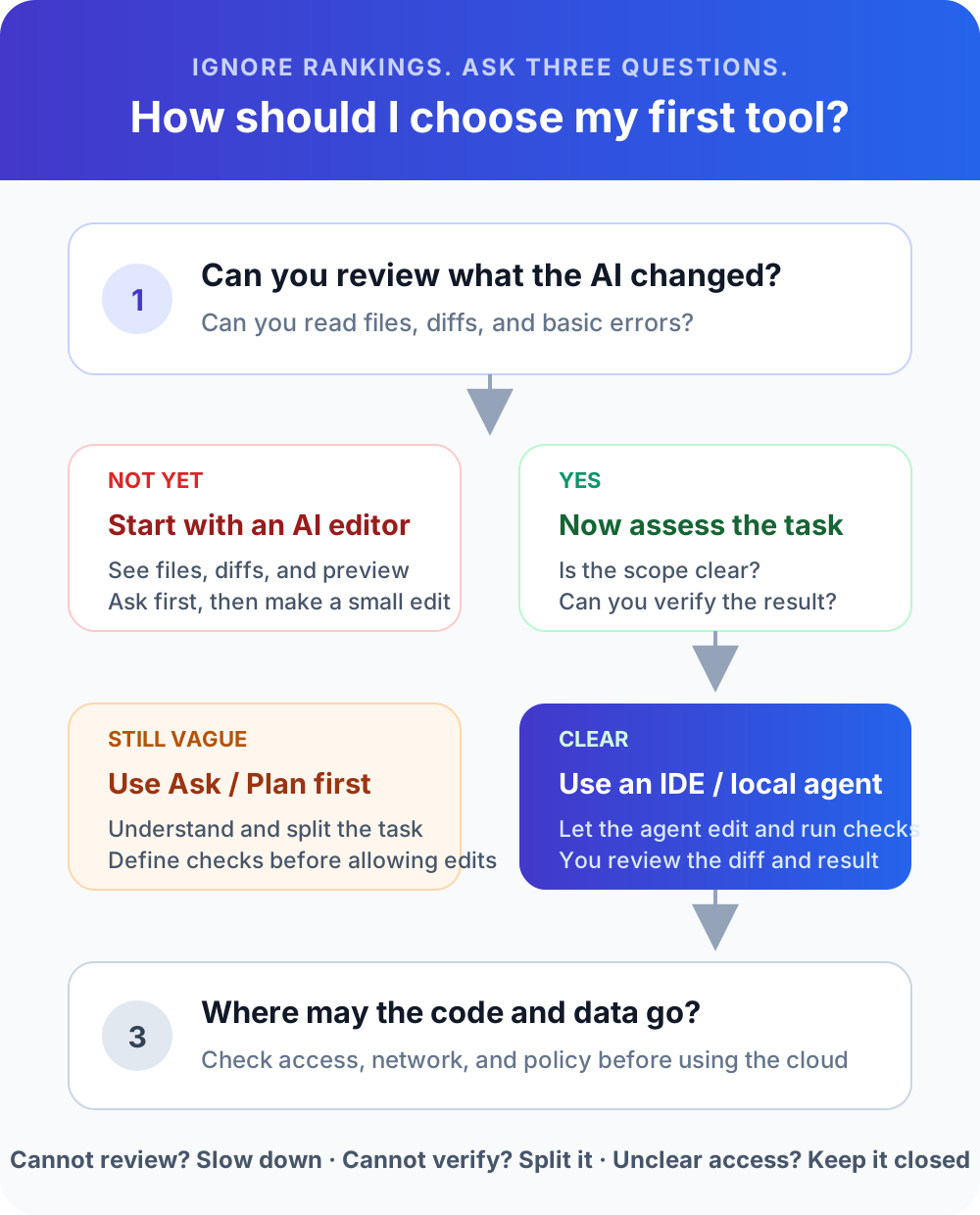
Question 1: Can you understand what the AI changed?
If not, choose an AI editor that clearly displays the file tree and code diff. Begin with Ask mode or an agent mode that asks for confirmation.
Do not hand an entire project to a fully autonomous agent on your first day. The reason is not that the agent will always fail; it is that you do not yet have reliable ways to notice when it has failed.
Question 2: Does the task have a clear acceptance test?
“Improve this project” has no clear finish line.
This task is easier for an agent to complete and for you to review:
Add phone-number validation to the registration form. Show an error below the field for an invalid number, and keep valid submissions working. Run the tests, then check both the invalid and valid cases in the browser.
It defines:
- The object being changed: the registration form.
- The expected behavior: validation and an error message.
- The behavior that must remain intact: valid submissions.
- The acceptance method: automated tests plus a browser check.
The easier a task is to verify, the safer it is to give to an agent with more execution authority.
Question 3: Where may the code and data go?
A personal practice project and a production repository have very different risks. Before choosing a tool, confirm:
- Whether the code is processed locally or uploaded to a cloud environment.
- Which files and network destinations the agent may access.
- Whether commands require your approval.
- Whether it might encounter secrets, customer data, or production accounts.
- Whether your organization restricts models, plugins, MCP servers, or external services.
More automation does not make a tool appropriate for every project.
6. A safe default plan when you still cannot decide
Step 1: Choose an interface you can understand
If you already use VS Code, begin with its Copilot experience. If you are willing to try another editor, consider Cursor or Trae.
The goal is not to find an absolute winner. Confirm that your choice provides at least:
- Project file browsing.
- Ask or read-only chat.
- Multi-file editing.
- Diff review.
- Confirmation before terminal commands.
- A way to run tests or preview the application.
Step 2: Prepare one small practice project
Do not start with an important company repository. Choose something like:
- A to-do list.
- A personal profile page.
- A simple expense tracker.
- A practice project with only a few files.
Save the initial version with Git. If a change fails, you will be able to compare or restore the project.
Step 3: Ask first, then edit
When you first open the project, copy this prompt:
Read this project first. Do not modify any files yet.

Explain in beginner-friendly language:
1. What does this project do?
2. How do I start it?
3. What are the five most important files responsible for?
4. If I want to change the home-page title, where should I start?
5. Which commands or files are risky and require my approval?
If the explanation matches what you can observe, give the AI its first editing task:
Change the home-page title to “My First AI Coding Project.”

Requirements:
1. Make only the minimum changes needed.
2. Before editing, explain which file you will change.
3. Start the project or run the relevant checks afterward.
4. Tell me how to inspect the result myself.
5. Do not install unnecessary dependencies.
This tiny task contains a complete AI Coding loop:
Understand the project → explain the plan → change the code → run checks → confirm manuallyCompleting that loop teaches you more than generating thousands of lines of code on the first attempt.
7. Six dimensions worth comparing
When you encounter a new product, look beyond the demo video. Compare it across these six dimensions.
1. Context: what can it see?
Does it only see the current code snippet, or can it search the repository? Can it read documentation, design files, issues, and browser errors?
Even a strong model will make poor guesses when important context is missing.
2. Action: what can it do?
Can it only answer questions, or can it edit files, run commands, use Git, inspect a browser, and call external tools?
Explaining an action and performing it are different capabilities.
3. Control: can you stop the wrong action?
Does it show a diff? Does command execution require approval? Can you restrict the directories, networks, and tools it may access?
Beginners should favor tools with visible, understandable control boundaries.
4. Verification: can it check its own work?
Writing code is only an intermediate step. The ability to run tests, type checks, builds, and browser checks is often more valuable than producing a large first draft quickly.
5. Environment: where does it work?
- IDE: useful when you want to inspect and edit side by side.
- Terminal: useful for local engineering work and automation.
- Desktop app: useful for task management, parallel work, and visual review.
- Cloud: useful for background execution, provided you understand the environment, permissions, and data boundaries.
6. Cost and team fit: can you use it consistently?
Consider subscription cost, model quotas, network availability, collaboration, compliance, and whether teammates can reproduce your workflow.
Do not choose a tool that your team cannot use reliably just because it is occasionally faster.
8. Five common beginner mistakes
Mistake 1: Comparing models but ignoring tools and context
The model is only one part of an AI Coding system. Project context, available tools, project rules, and acceptance criteria all affect the result.
Mistake 2: Enabling every automatic permission immediately
Automatically approving every command feels convenient, but it can delete files, change far more code than intended, or run a script you do not understand. Keep approvals visible at first, then relax them gradually as you learn the workflow.
Mistake 3: Treating a large, vague wish as a task
“Build an e-commerce website” is too broad for a beginner to delegate safely. Break it into independently testable goals such as the home page, product list, cart, and sign-in flow.
Mistake 4: Assuming “tests passed” means the feature is correct
Tests can be incomplete or disconnected from the actual requirement. Review the diff and try the critical user flow yourself.
Mistake 5: Switching tools every day without completing a loop
A new tool can feel exciting, but switching does not automatically improve your AI Coding skills. First use one tool to complete this loop:
Describe the requirement → change the code → run it → find a problem → fix it → accept the resultOnly then will comparisons with other tools become meaningful.
9. Tools will change; the learning path will not
AI Coding is moving from completing a few lines to acting around a complete task. The IDE will not disappear. It is becoming the workbench where people observe, review, and take over from agents.
A practical learning sequence is:
- Use completion to write familiar code faster.
- Use Ask to understand unfamiliar code.
- Use an IDE agent for small, clearly defined changes.
- Learn to inspect diffs, logs, tests, and pages.
- Use terminal or desktop agents for complete tasks.
- Then explore cloud execution, parallel tasks, and automation.
The most important upgrade is not the tool. It is your role:
Move from “ask AI to write code” to “give AI a clear task and take responsibility for the result.”
10. Try this 15-minute exercise
Do not spend another hour comparing rankings. Open an AI editor you can already use and complete four actions:
- Open a practice project.
- Ask the AI to read and explain it without making changes.
- Ask the AI to change one page title.
- Review the diff and inspect the page yourself.
Once you finish, you will have crossed the first important threshold in AI Coding. You are no longer asking AI for isolated snippets; you are managing a small, verifiable development task.
The next article walks through that loop in practice:
Quick Start with AI Coding: Develop a web application in 10 minutes